
Settings and Controls
Default keyboard, mouse and VR controller bindings for the Basis client, where to rebind them, and where to find logs and library data.
Controls
Basis has a fuller set of controls than most people realise on first launch. This page is a quick reference for the defaults across desktop and VR, and where to change them.
Every keyboard binding below is rebindable in-client under Settings → Keyboard Bindings. The button for each control shows its current key, and the default in brackets if you've changed it. Escape cancels a rebind in progress, and you can reset everything back to defaults from the same panel.
Movement
| Action | Default key |
|---|---|
| Forward / Back / Left / Right | W S A D |
| Movement (alternative) | Arrow keys |
| Jump | Space |
| Sprint | Left Shift |
| Crouch | C |
| Fly up / down | R / F |
Camera (desktop)
| Action | Default |
|---|---|
| Look | Move the mouse |
| Look (keyboard alternative) | I K J L (and , .) |
| Toggle third-person view | F |
| Zoom (in third-person) | Mouse scroll wheel |
| Interact / select | Left mouse button |
Communication and menus
| Action | Default key |
|---|---|
| Toggle microphone | V |
| Open chat | Y |
| Free cursor (unlock mouse for UI) | Tab |
| Open / close menu | Escape |
Toggle microphone depends on your microphone mode. With push-to-talk, V transmits while held; in toggle mode it switches the mic on and off. Set the mode in the audio settings.
Switching input mode
You can move between desktop and the two XR runtimes at runtime:
| Key | Mode |
|---|---|
F9 | Desktop |
F10 | OpenXR |
F11 | OpenVR |
VR controllers
In VR the same actions map to the controllers rather than the keyboard:
- Thumbstick — movement (one controller) and turning (the other).
- Trigger — interact / select, the controller equivalent of left mouse button.
- Grip — used for descending in fly mode and for grabbing.
- Primary face button — jump.
- Menu / system button — opens the menu.
VR controller bindings aren't part of the keyboard rebinding panel — they're driven by the active OpenXR / OpenVR interaction profile for your headset.
Help with Debugging
-
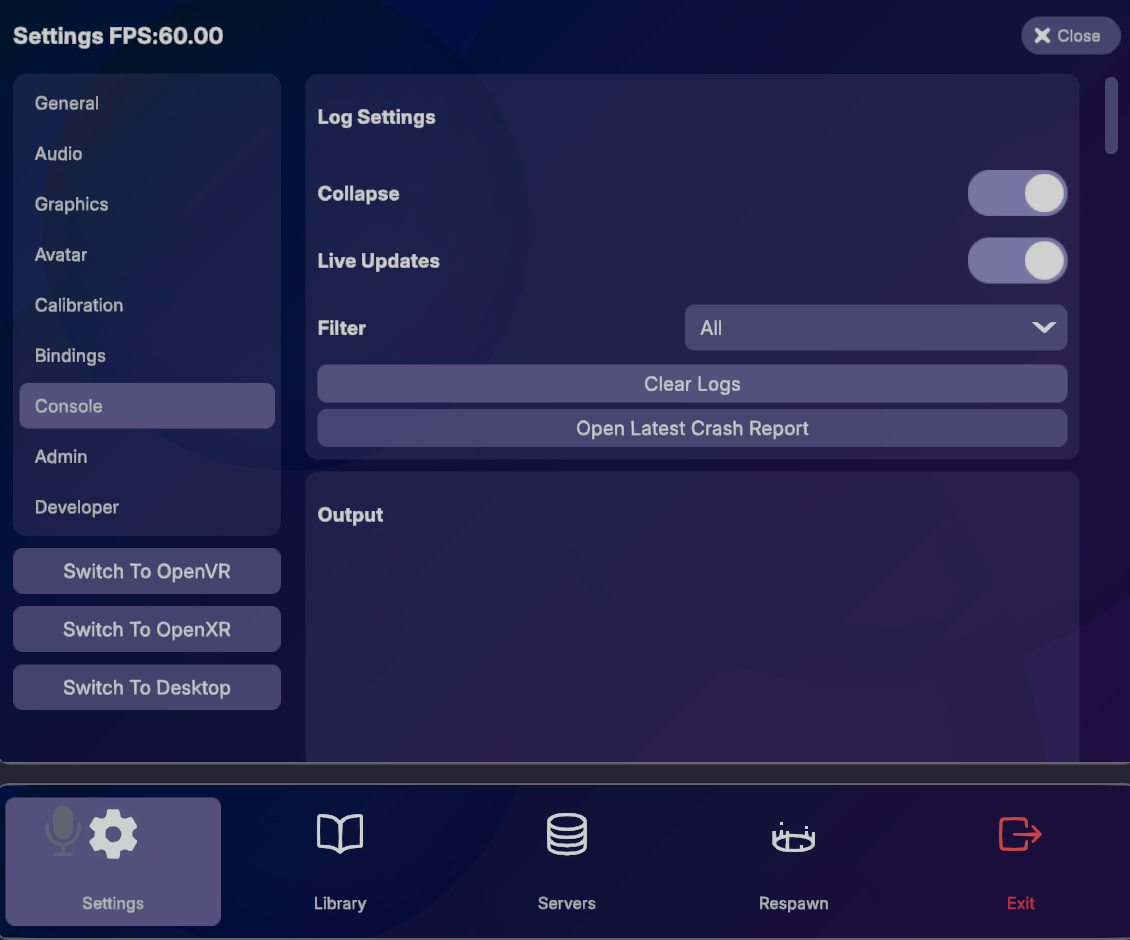
You can use BasisDebug.Log("<your-log-message-here>"); to print output to the Basis app's in-game console menu.
-
You can also view the
Player.logfile located in:%USERPROFILE%\AppData\LocalLow\Basis Unity\Basis Unity~/.steam/steam/steamapps/compatdata/3157090/pfx/drive_c/users/steamuser/AppData/LocalLow/Basis Unity/Basis Unity/ This depends on the proton using the steamid of the selected app, building in editor will be in a different location.It provides a more comprehensive log of the exact Unity issues encountered while playing. This includes stack traces such as the exact line a nullreference error might have come up in.
Where Are Library Items Stored?
-
The
ItemKeyStore.jsonis located in:%USERPROFILE%\AppData\LocalLow\Basis Unity\Basis Unity~/.steam/steam/steamapps/compatdata/3157090/pfx/drive_c/users/steamuser/AppData/LocalLow/Basis Unity/Basis Unity/ This depends on the proton using the steamid of the selected app, building in editor will be in a different location.It stores a mapping of the avatars, worlds, and props currently contained in your library.
Within the codebase, you can also find there is an EmbeddedItems class containing library items that are embedded into the application.
Last updated on