
Uploading
Uploading Your Avatar
Basis allows you to load an Avatar .BEE file from a remote URL location, which is also required for other users in a networked session to also load the assets.
You can add your avatar password directly into the url for your .BEE file by https://locationofBeefile.BEE#(Base64Encode(Password))
Which you are appending # and Base64Encoded string of your password.
In order to support this, you will need to direct link to a remote location. For this example, we will use Google Drive.
Upload the BEE file to Google Drive, or any hosting provider that allows direct links to files without login.
- Create a Folder on your Drive and set its sharing settings to "Anyone with the link."
Now when you drag your files into this Folder, you will not individually need to set that permission.
- Click the Hamburger Menu on the Top Right of the asset you have just uploaded into the folder.
- Find "Share" and click "Copy Link."
We will need to look into the URL to grab the information we need for your BEE file.
Example:
https://drive.google.com/file/d/YourIDBringsAllTheLagToMyYard/view?usp=sharingWe want to copy the unique identifier inside of the URL and add it to the following:
https://drive.google.com/uc?export=download&id=Example:
https://drive.google.com/uc?export=download&id=YourIDBringsAllTheLagToMyYardGoogle Drive Direct Link Converter
Google Drive supports the direct link of files up to 100MB due to their Virus Scanning policy.
DO NOT UPLOAD YOUR GENERATED PASSWORD FILE OR SHARE IT
Loading in Basis
Load up Basis, open the menu, and select Library.

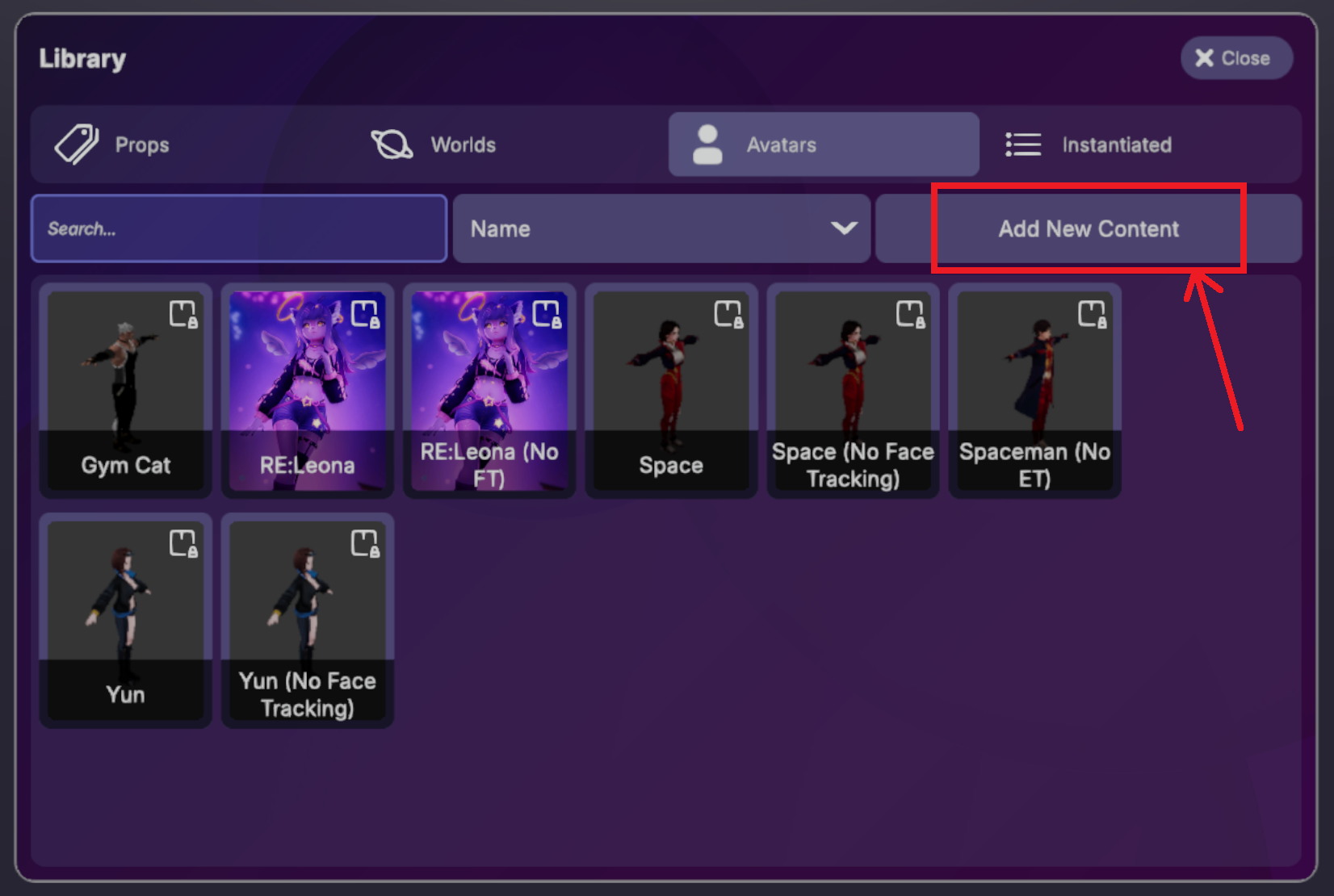
In the Library menu, select 'Add New Content' near the top-right of the window.
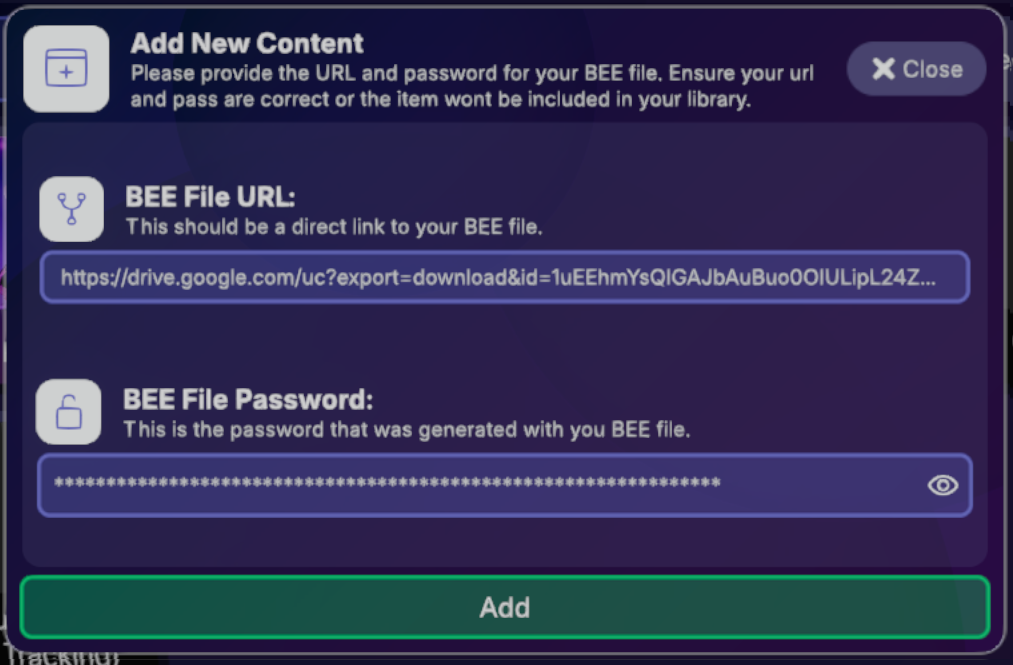
Paste the BEE file URL into the BEE File URL field and the SUPER SECRET ENCRYPTED PASSWORD into the BEE File Password field then click 'Add' below.
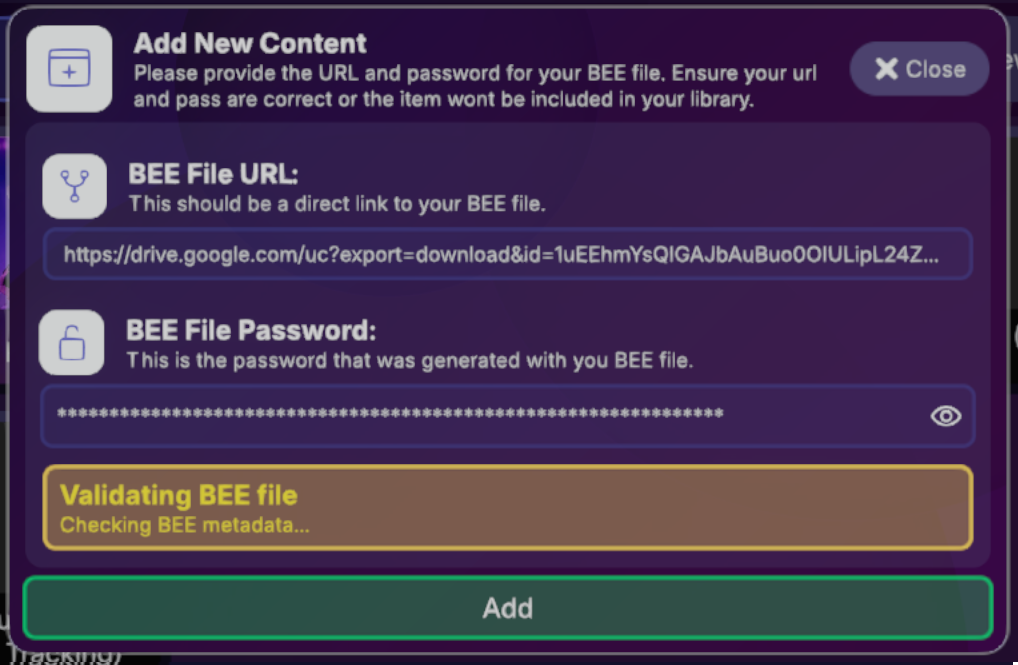
The contents of the BEE file will be validated before getting added to your library.
Avatar Management
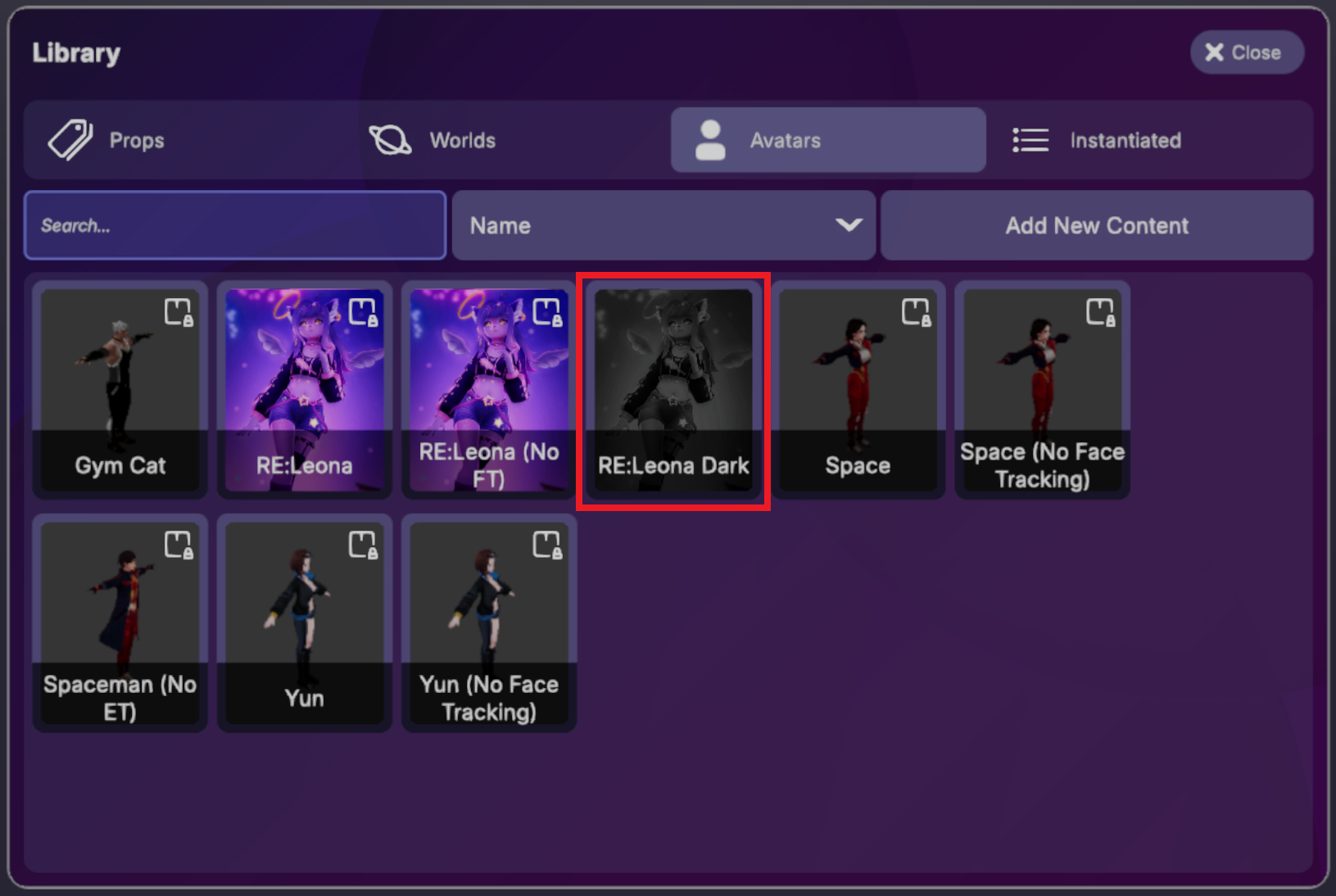
You can find the avatar recently added in to the Library.
Avatars can be Loaded, Deleted or Shared with others in the world, by clicking on the corresponding buttons at the bottom of the window.
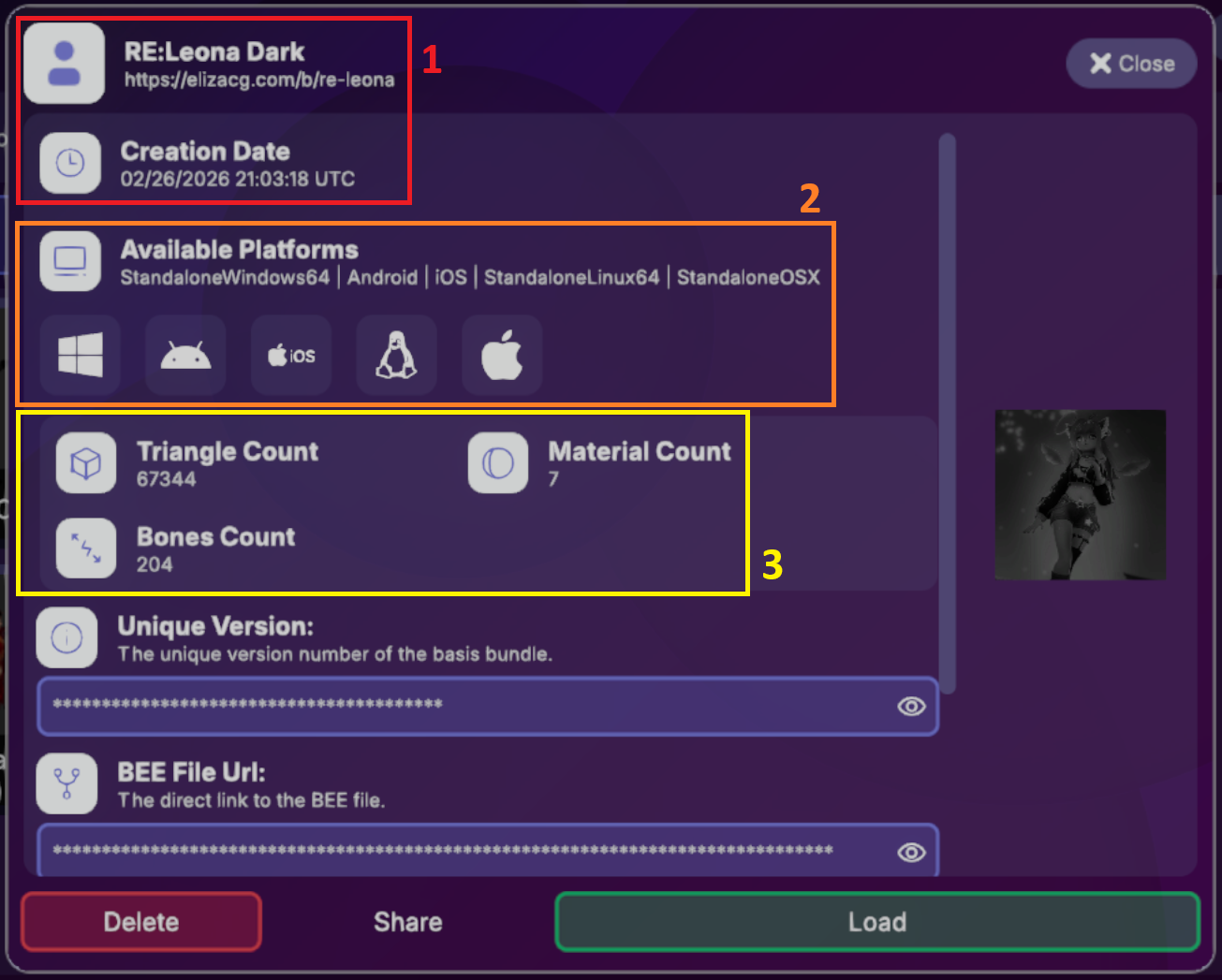
In addition, you will also see a number of useful information panels here:
- (1) Avatar Information - The details panel displays the compilation timestamp, Title, and Description
- (2) Platform Compatibility - Icons indicate which OS platforms support this avatar
- (3) Statistics - Displays Triangle, Material & Bone counts
Last updated on