
Setup
Set up the Unity Editor
- As per the Getting Started section for installing the latest supported Unity editor version and acquiring the Basis framework.
- Open Unity Hub and add an existing project, choose the extracted/cloned Basis project folder
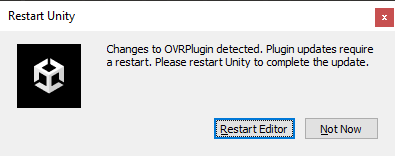
- On the initial project load you will see the following prompt, please hit 'Restart Editor'.
- Once the project has loaded, you can now load in your Avatar files:
- Either,
- Find
Assetsin the Project hierarchy, insideAssetsright-click any empty space and selectShow in Explorer - Copy in your Avatar files [Mesh/Materials/Textures, etc.]
- Find
- or
- Import a .unity package containing your files, from the Assets menu, Import Package > Custom Package
- Bring back the Unity window and allow the import process to finish.
If you place your content within a new directory "Assets > _UserContent" the default .gitignore file with the project will hide changes in git on this folder.
Import Model
- Find the location of your Avatar model (usually provided in .FBX format).
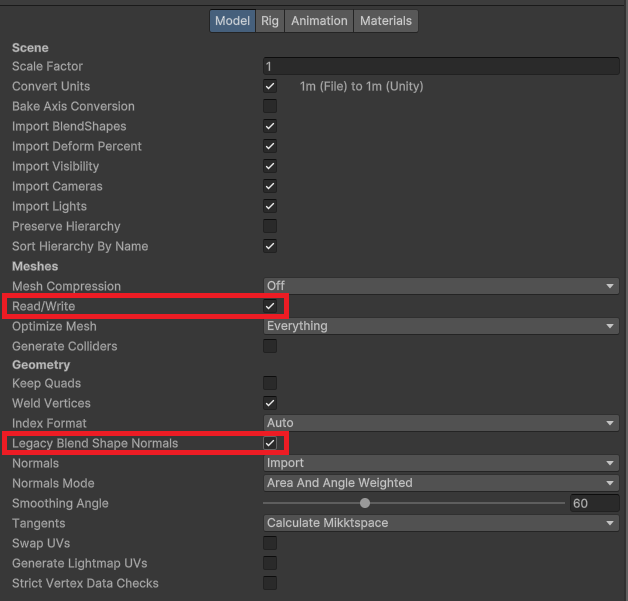
- Click the file and then navigate to the
Modelsection of the Import Settings window. - Ensure that
Red/WriteandLegacy Blend Shape Normalsare selected as below.
- Navigate to the
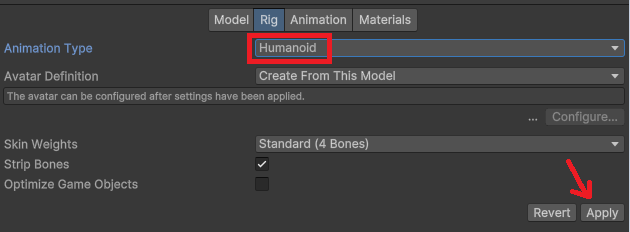
Rigsection of the Import Settings window. - Click the
Animation Typedrop-down menu and selectHumanoid, pressApplyas shown below.
- Afterward, the
Configurebutton aboveApplyis now selectable, click this and then check your bone mappings.
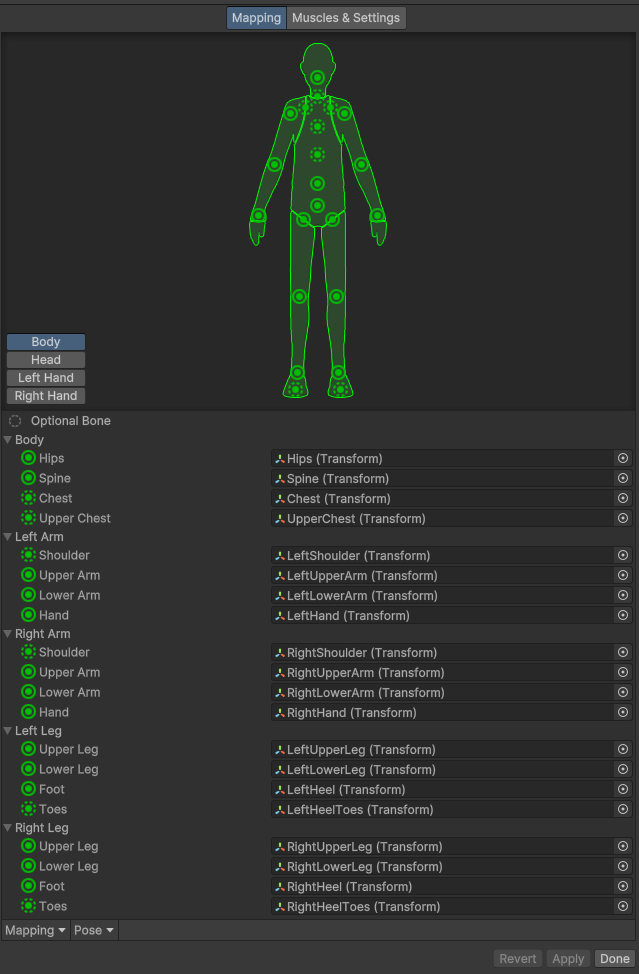
- This should show all mandatory bones as selected; make sure this looks correct for your Armature.
- Lastly, click on the
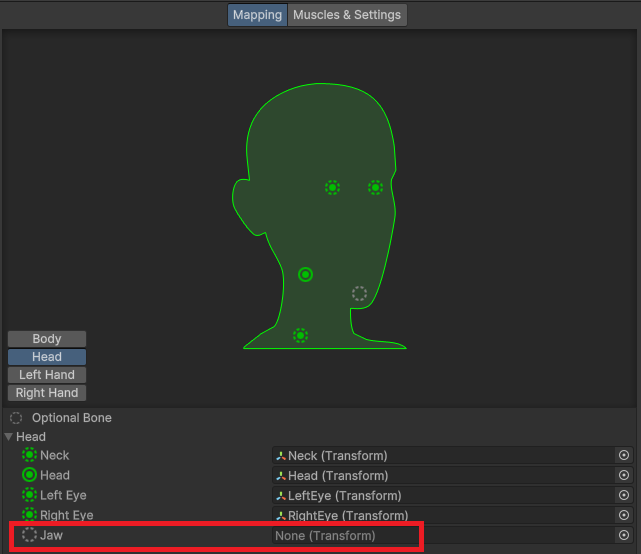
Headbutton in theMappingwindow and remove the assignment for theJaw; this is usually incorrect.
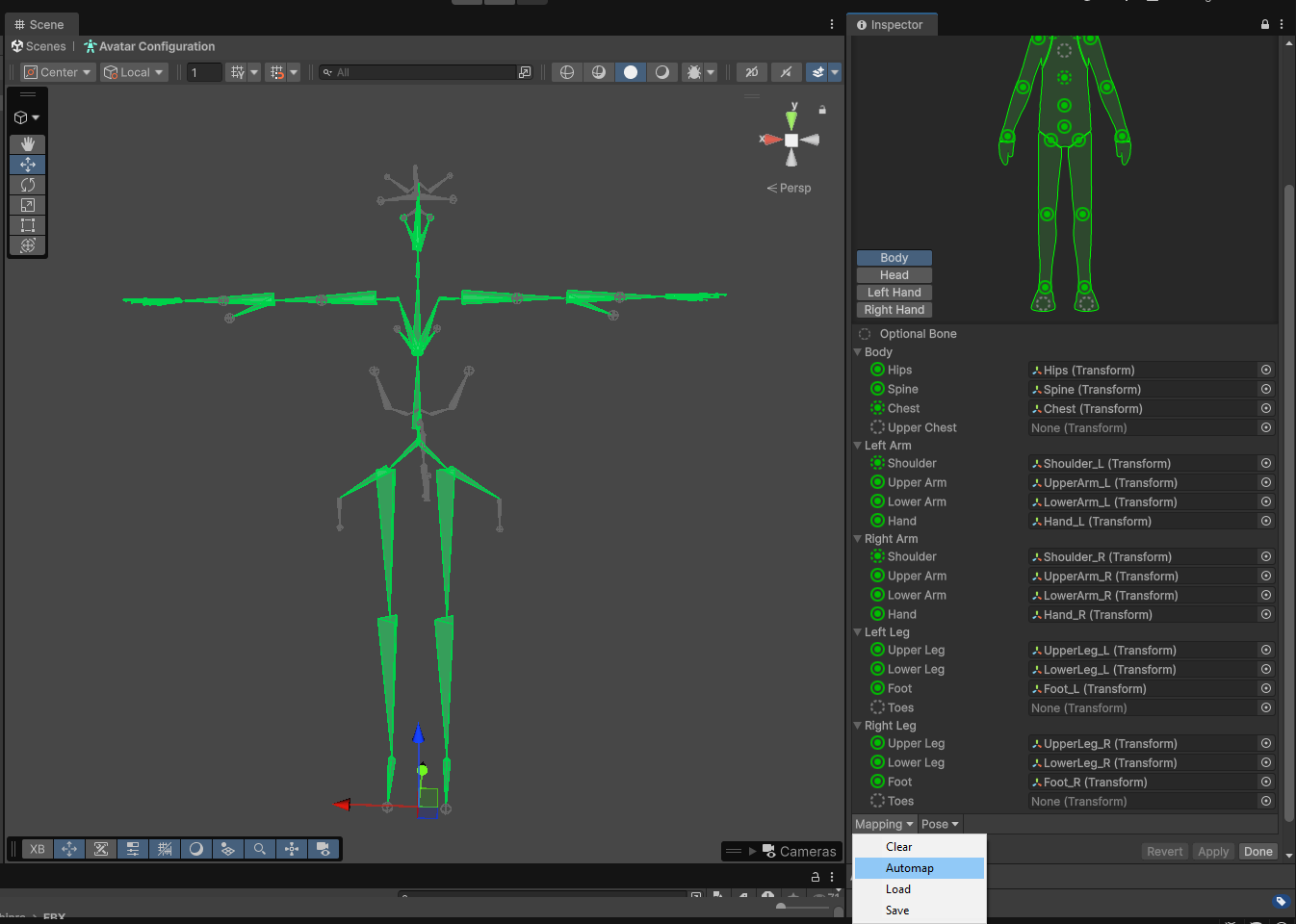
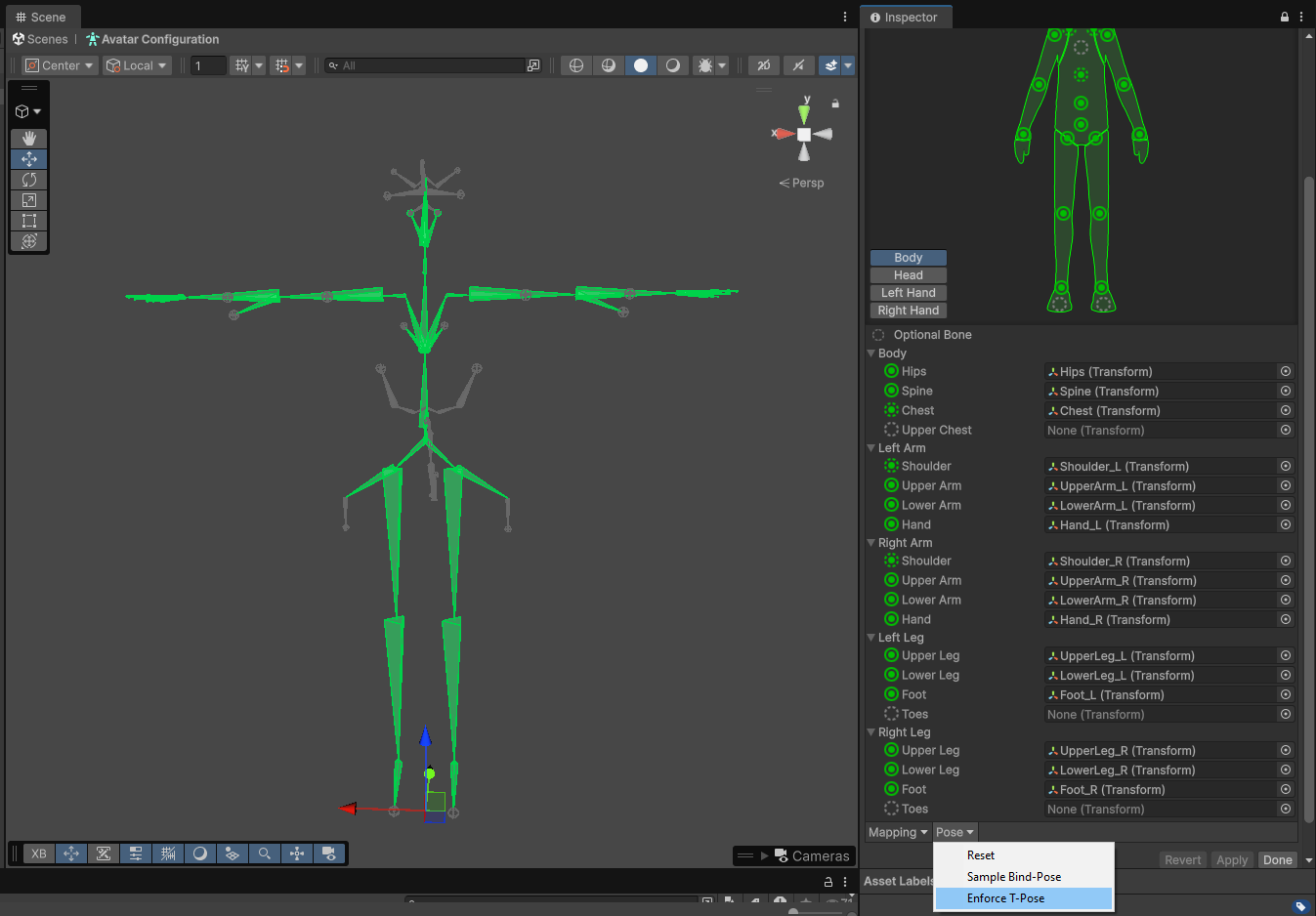
In some cases, the Unity inspector might mention that your avatar's bone mappings aren't properly assigned, or that the avatar isn't T-posed properly. To fix this, you can click on the Mapping and Pose dropdowns and select Automap or Enforce T-Pose.
Skinned Mesh Setup
- There are currently no requirements to name your Avatar's Skinned Mesh as
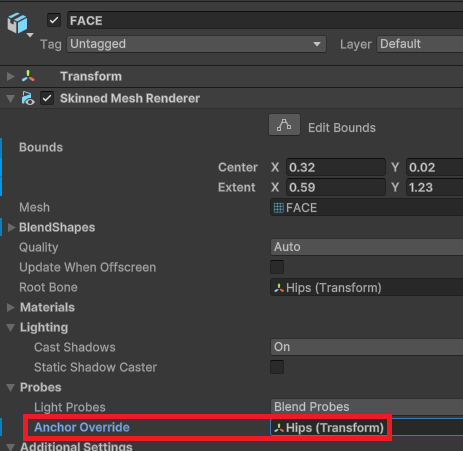
Bodyor other variation used on Virtual Platforms. - If you have multiple skinned meshes, consider pinning them to all use the same reference point on the body, for inheriting light probes in the scene. You can do this by assigning a bone from the Armature (Usually Hips) to the
Anchor Overridefield.
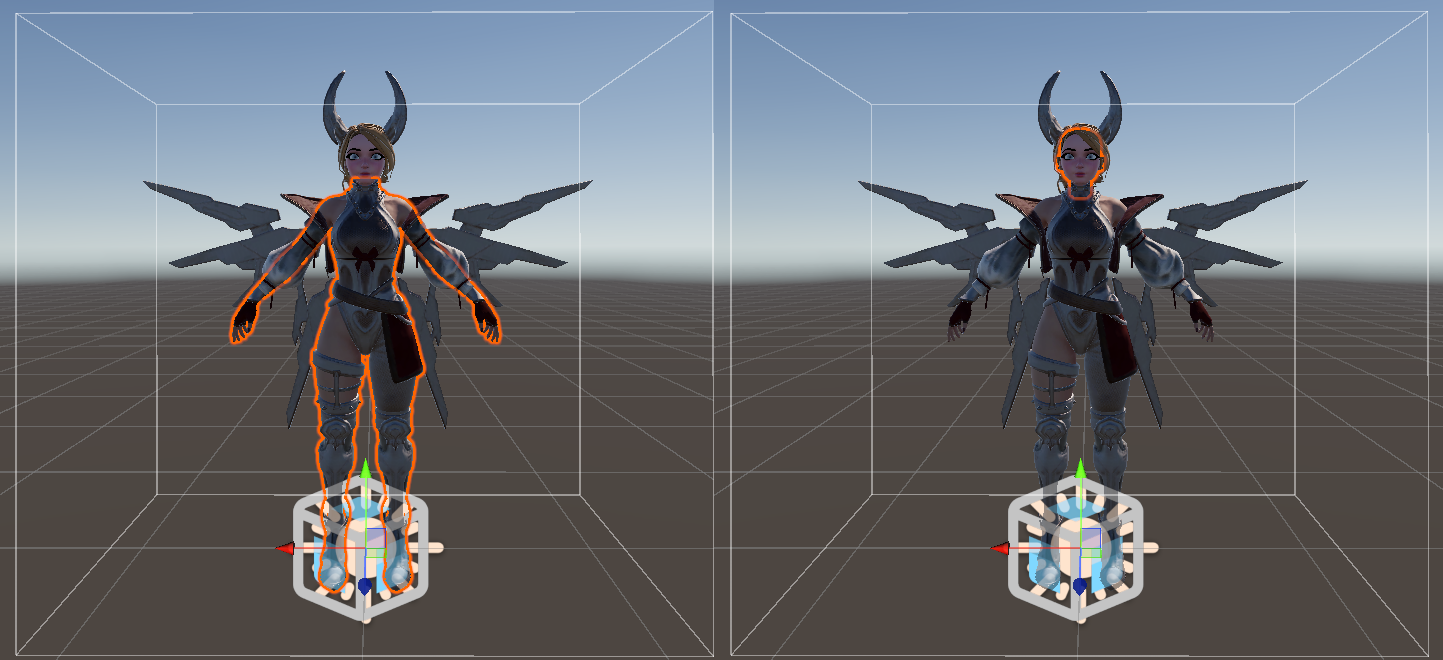
- Another consideration for Avatars with multiple Skinned Meshes is when different bounding box sizes cause individual meshes to pop in and out while the rest of the Avatar is visible to remote viewers.
- You can override the Center X, Y, Z & Extent X, Y, Z values in the section named
Boundsat the top of the Skinned Mesh Renderer component. Usually, it is a good idea to set this the same across the separate Skinned Meshes.
Materials/Shaders
- You can jump straight in with the Universal Render Pipeline/Lit shader that comes with Unity 6
- Otherwise, we have compiled a list of compatible Avatar Shaders that you can use.
Basis Avatar Setup
- The steps above should automatically add an Animator component to your Avatar prefab when you pull it into the Scene.
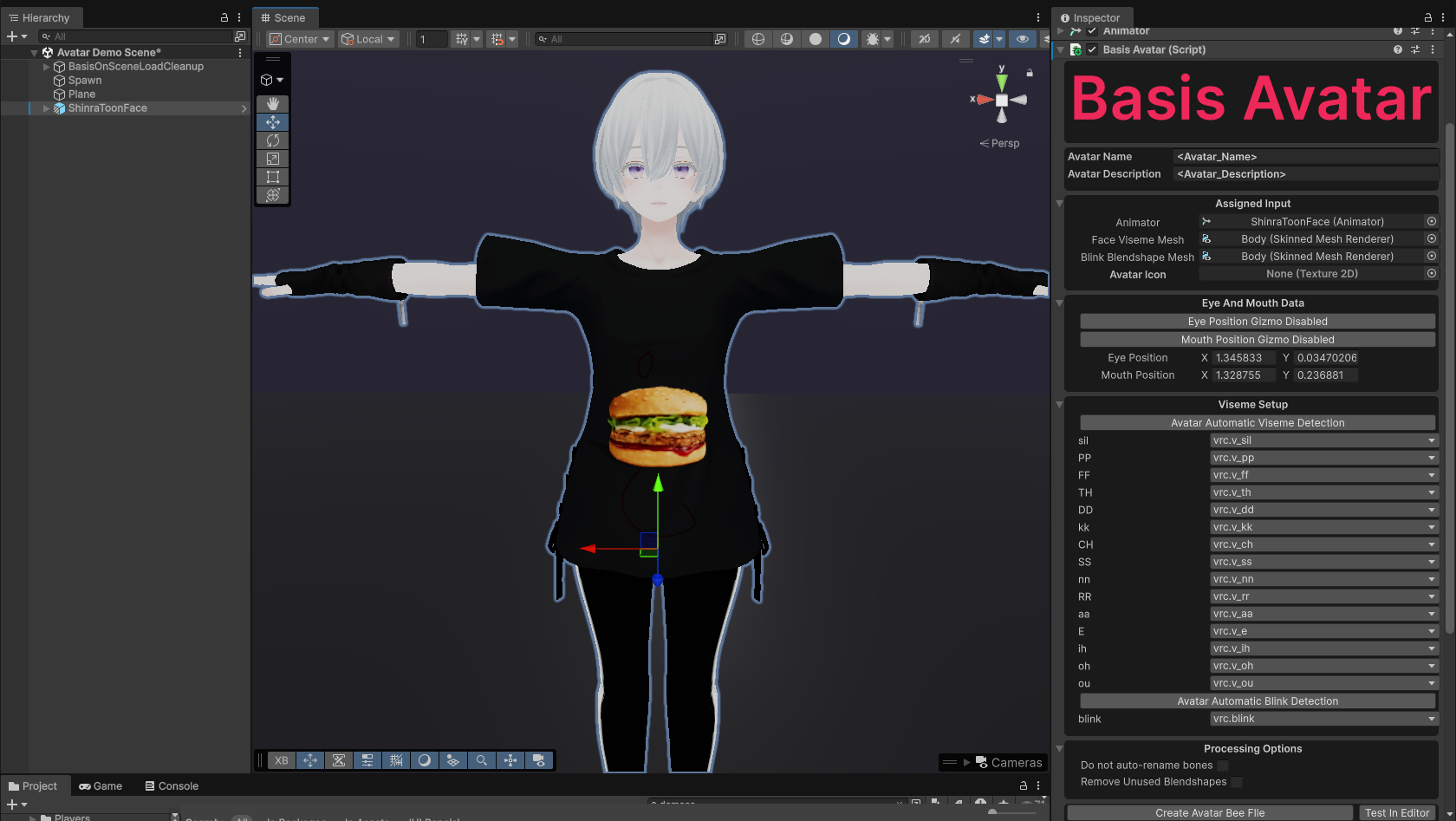
- On the Parent GameObject of the Avatar, click
Add Component, and addBasis Avatar. - Enter your preferred Avatar Name and Description.
- In
Assigned Input, ensure an Animator is assigned. Usually, this will automatically be done for you. Additionally, assign the Skinned Mesh Renderers which contain the face and blink blendshapes for your avatar. You can also add an optional thumbnail icon for your avatar if you like. - In
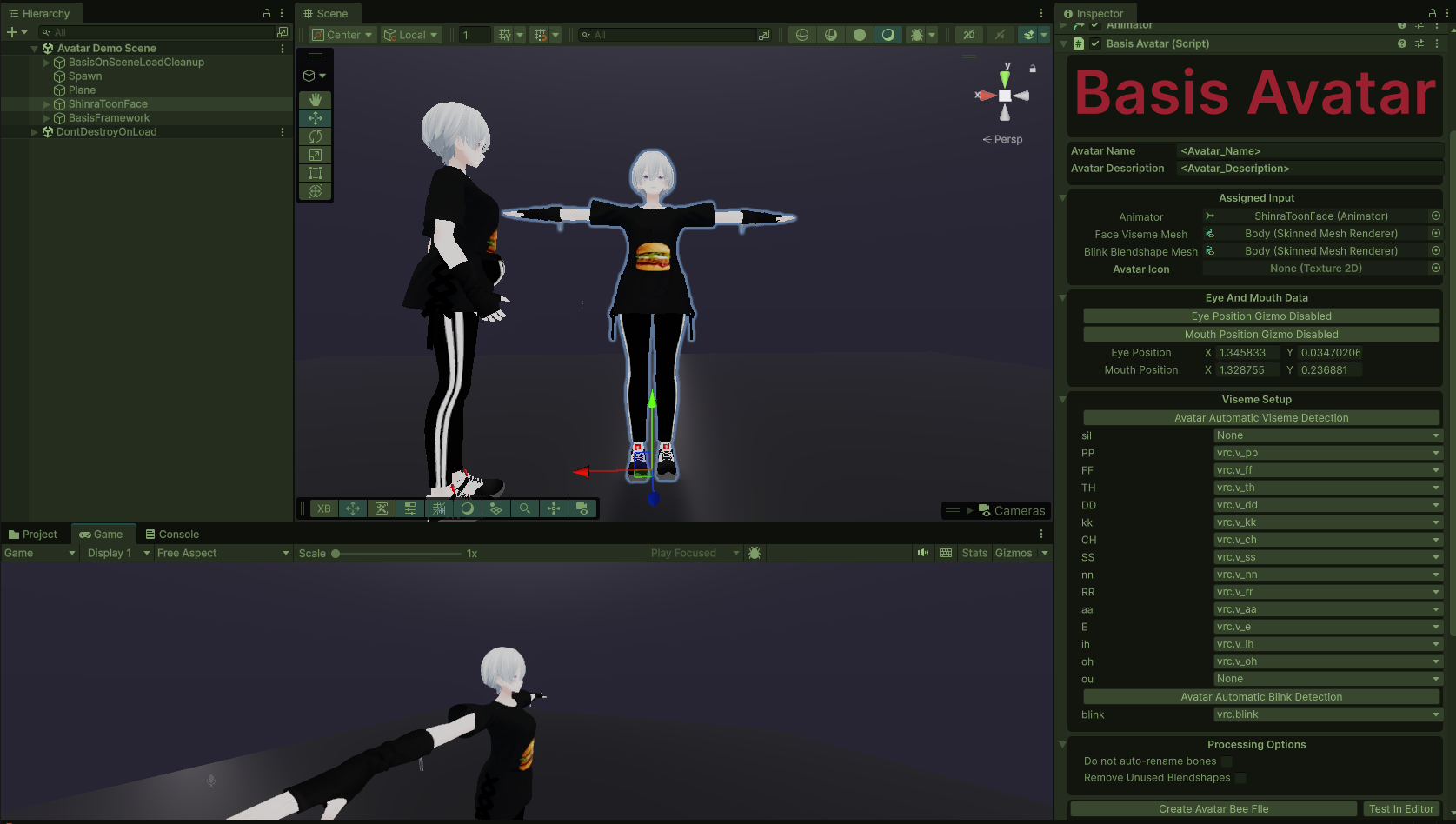
Viseme Setup, assign the relevant visemes and blinking for your avatars. You can also use the automatic detection buttons which will try to automatically do this for you. - Optionally, you can test your avatar in the editor by first entering play mode and then selecting the
Test in Editoroption. - Before selecting
Create Avatar Bee File, ensure that all your shaders are compatible. The BEE file will not generate if there are incompatible shader errors on your avatar (this includes clothing and attachments). If there are any issues, the inspector will report about it so make sure to resolve them!
In case you're new to Skinned Mesh Renderer blendshapes or uploading avatars in general, they're basically just sliders that you can control to change the morphs on your avatar.
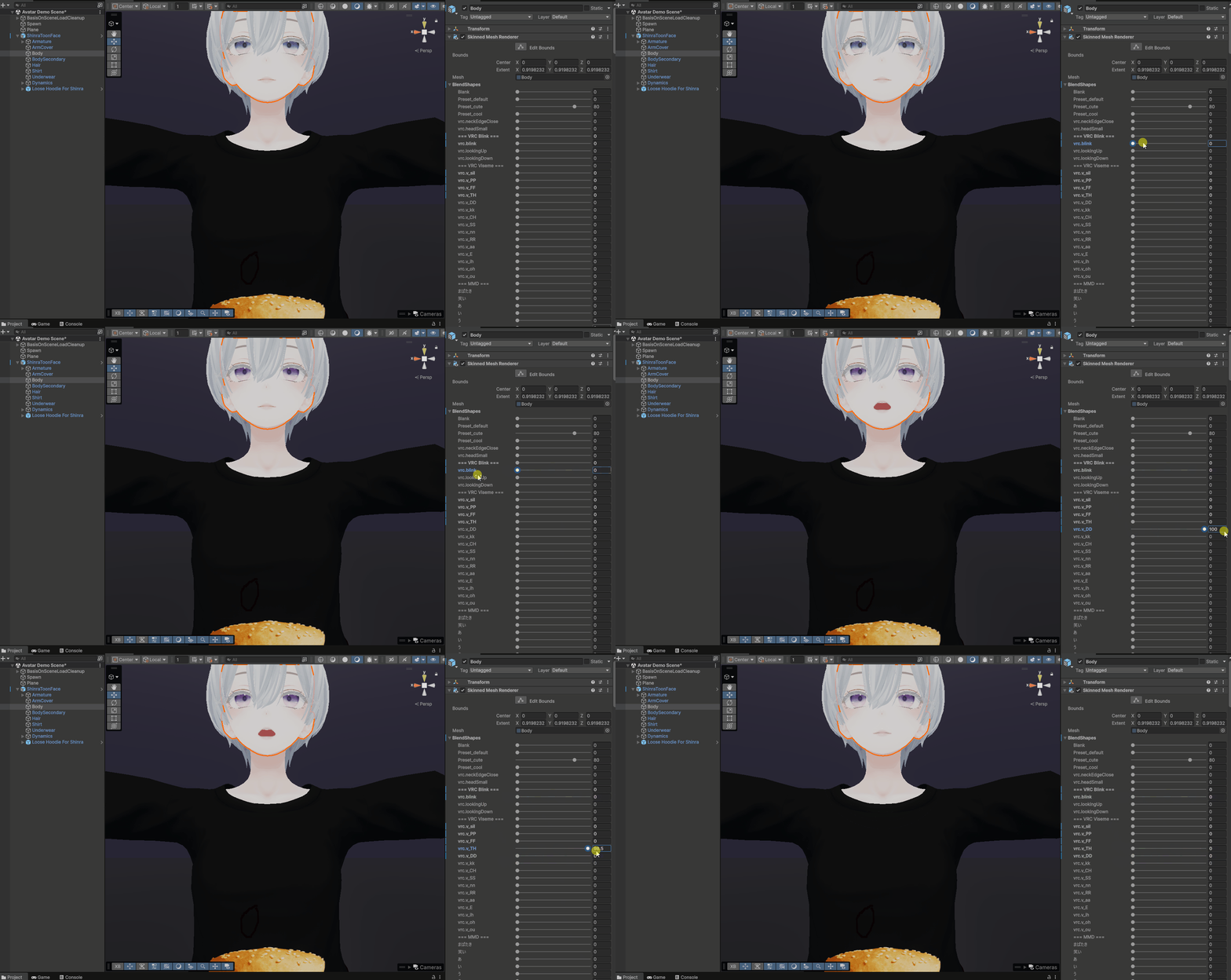
Note: You can still upload your avatar even if it doesn't have all the Basis Avatar blendshapes. Additionally, note that only eye blendshapes are supported; eye bones are currently not supported.
Constraints Setup
Basis does not use the built-in Unity Constraints system, instead it uses Animation Rigging. You can find the setup guide here.