
Props
What Are Props?
Props are interactive objects which can be loaded into a Basis scene and optionally synchronised across a network.
How to Create a Prop
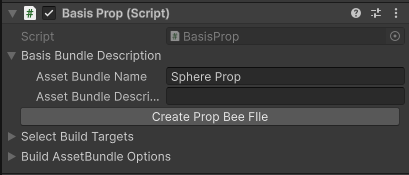
- Select a Gameobject and add a Basis Prop component to it.
- Enter an Asset Bundle Name.
- Optionally, add an Asset Bundle Description.
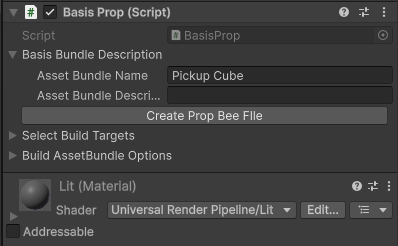
- Press the 'Create Prop Bee File' button and wait for this process to complete.
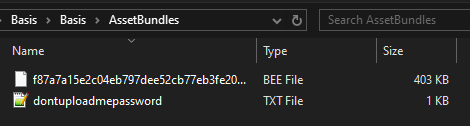
- The results will be opened in a new window automatically as shown below.
How to Create a Network Synced Prop
Props can be network synced and generated at runtime. Below is example of how to load a network synced Pickup Interactable cube:
- Add a cube object in the scene hierarchy.
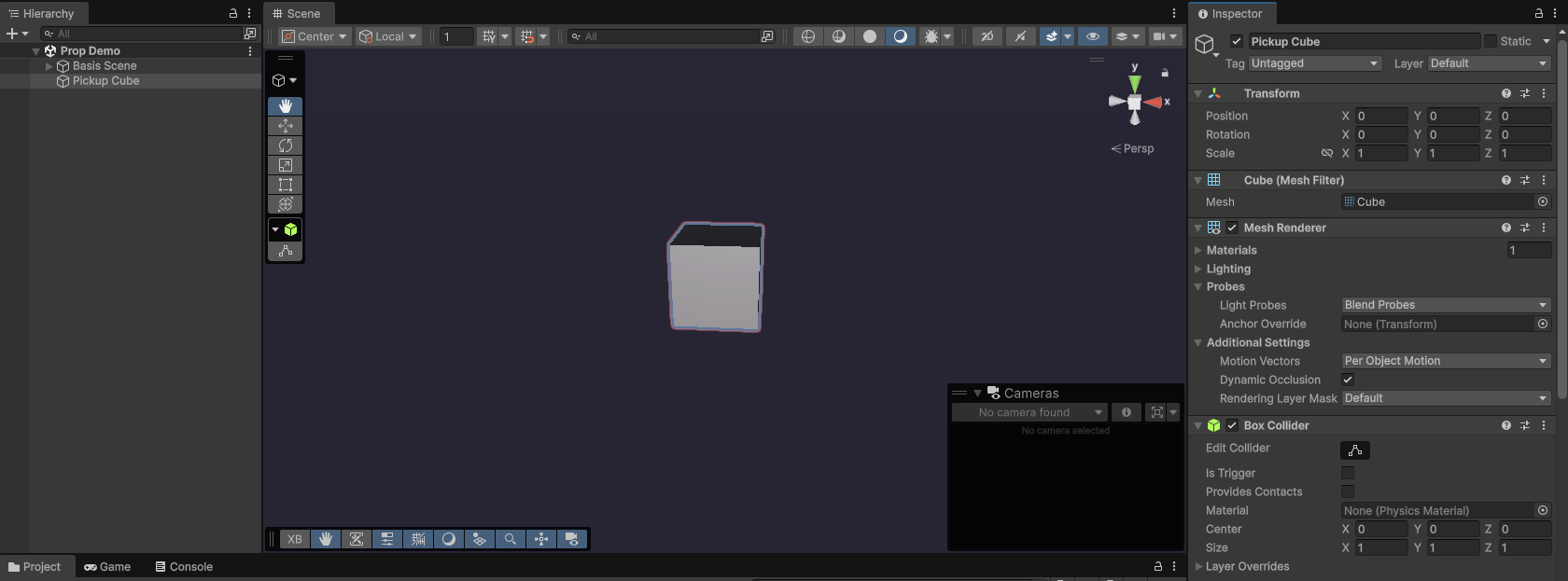
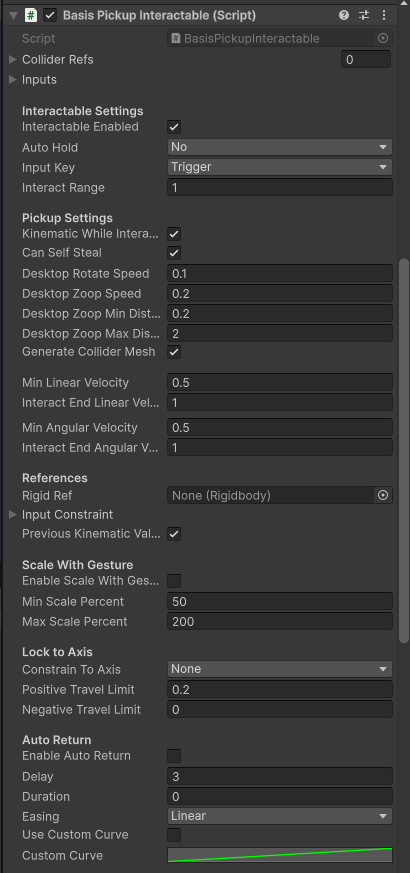
- Add a Basis Pickup Interactable component. This allows a local player to pick up and move the cube.
- Add a Basis Object Sync Networking component. This allows the cube to be synced for all players.
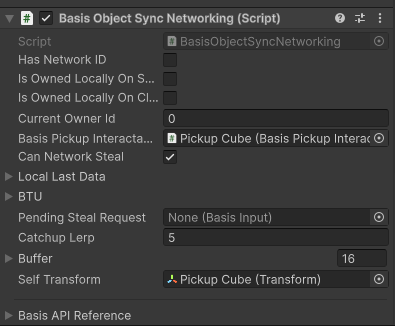
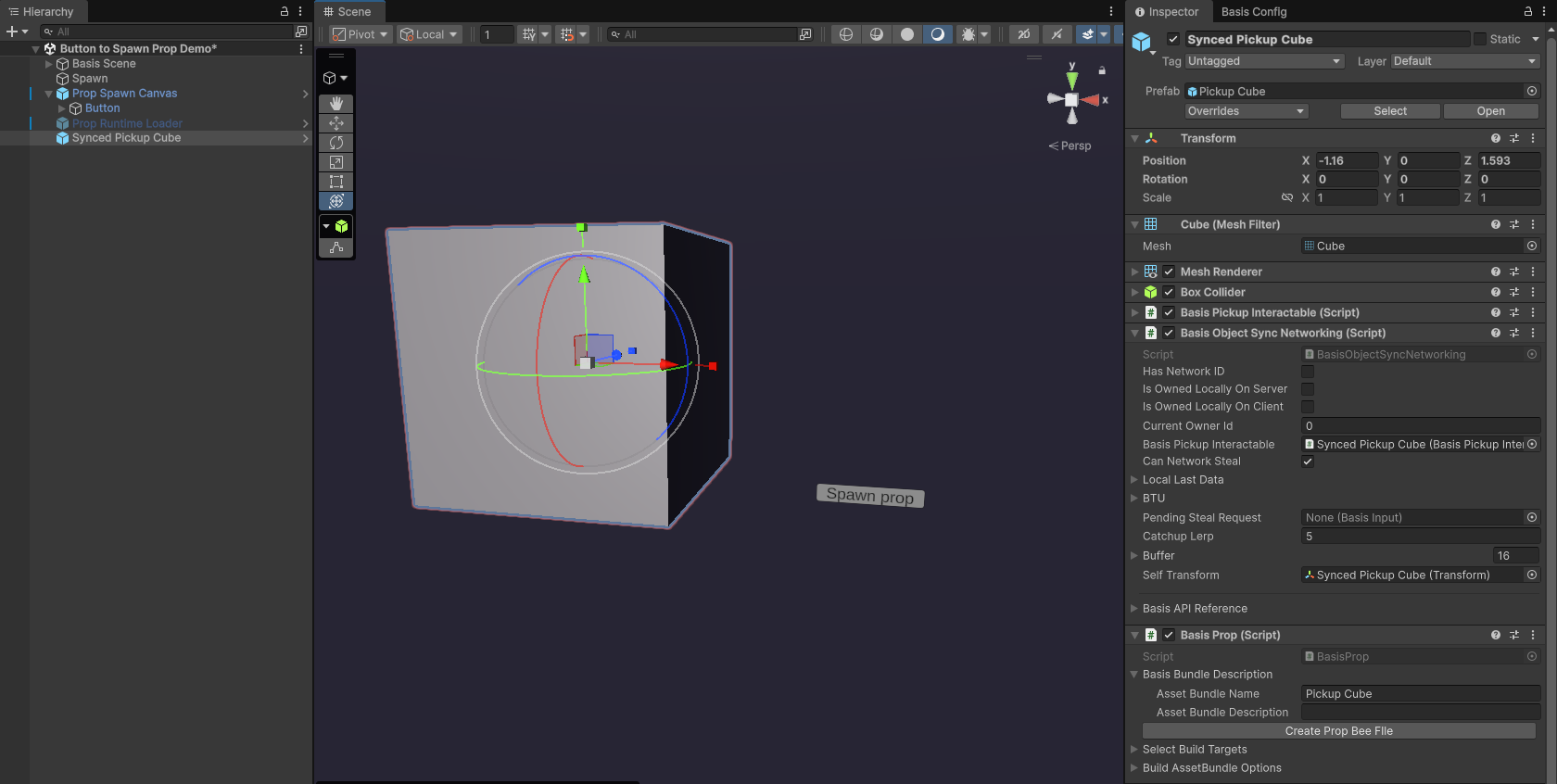
- Add a Basis Prop component, enter an Asset Bundle Name and press the 'Create Prop Bee File' button. The generated .bee files will be used by the Basis Runtime Loader to load the network synced cube into a scene.
Spawning the Prop into a Scene Using the Runtime Loader
-
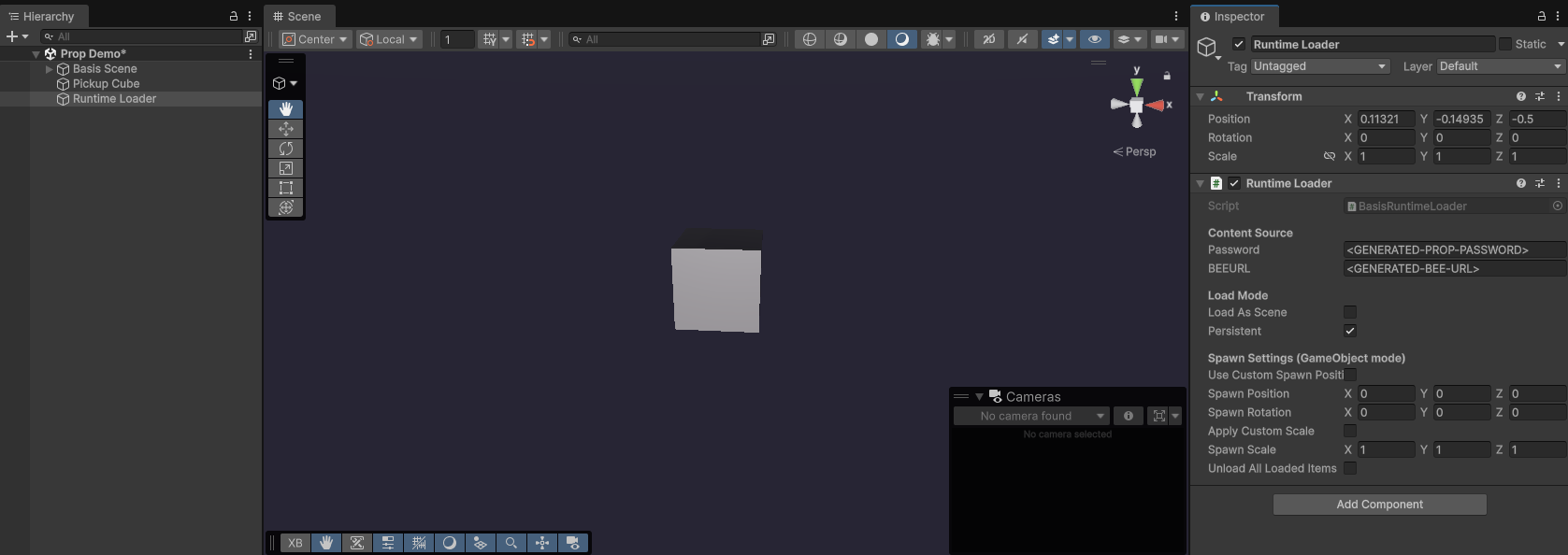
Create an empty Gameobject and give it a suitable name.
-
Attach the Runtime Loader component to it.
-
Enter your generated prop password and .bee url.
-
Select Persistent to ensure synced changes persist for late-joining players.
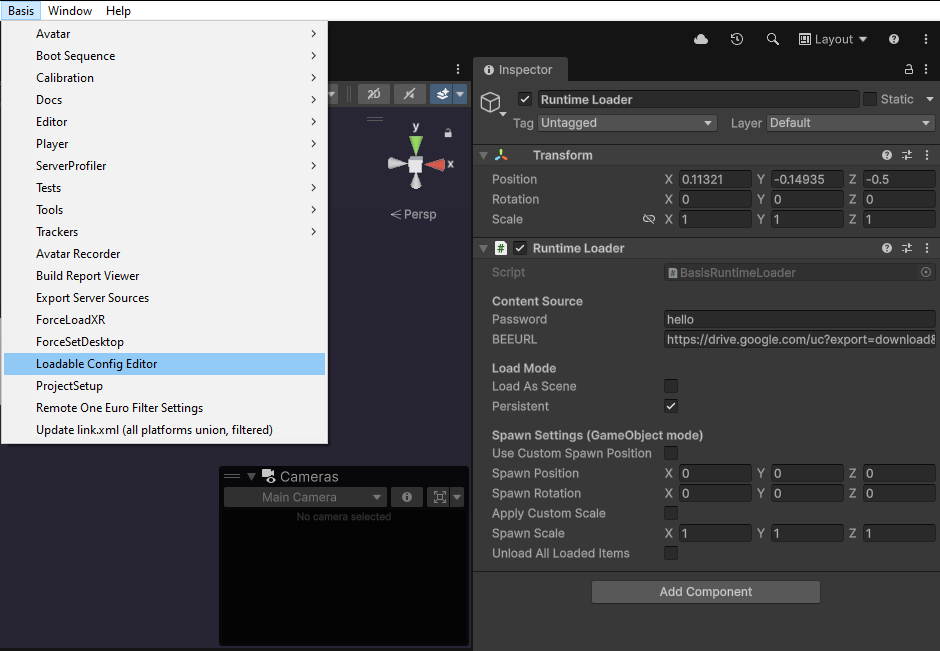
- In the Unity Editor toolbar, select Basis and click on the Loadable Config Editor. This Basis config editor is used to genertate XML files which Basis can use to spawn props into a scene.
-
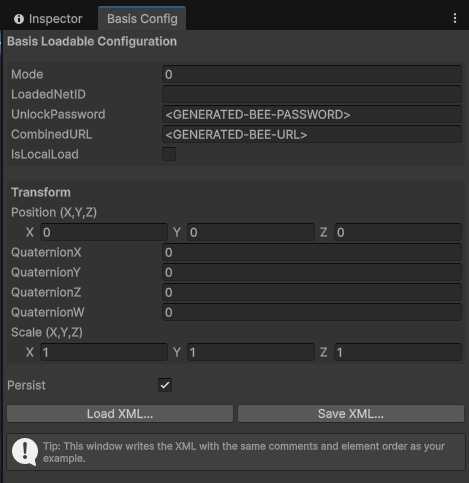
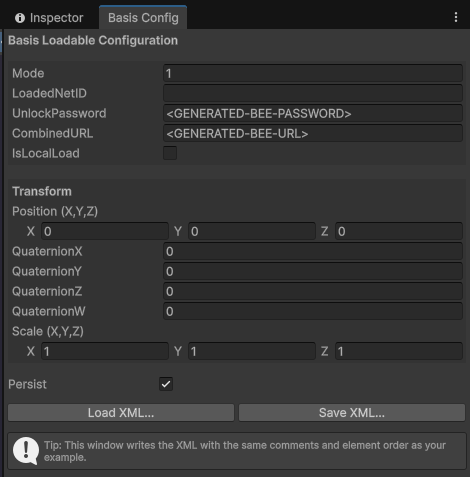
Enter 0 for the mode value. The 0 simply means that this is a loadable prop (a mode value of 1 is used for scenes).
-
Enter the same generated password and .bee url used previously.
-
Select Persist to ensure synced changes persist for late-joining players.
-
Click 'Save XML' and enter an appropriate file name to generate an XML file for the network synced pickup cube
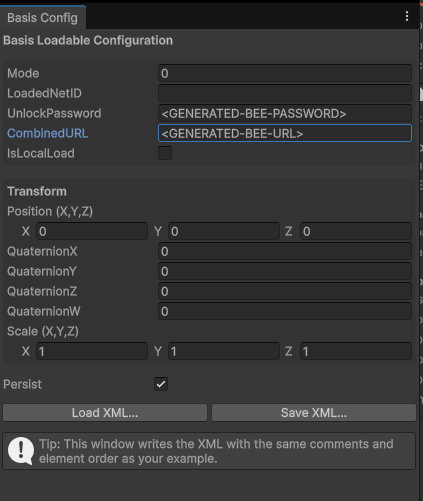
- The generated XML will be located in: Basis\Basis Server\BasisServerConsole\bin\Debug\net9.0\initialresources

- Its output should look something like this:
<?xml version="1.0" encoding="utf-8" standalone="yes"?>
<BasisLoadableConfiguration>
  <!-- Mode of the configuration --><Mode>0</Mode>
  <!-- Network ID --><LoadedNetID></LoadedNetID>
  <!-- Unlock password --><UnlockPassword><GENERATED-BEE-PASSWORD></UnlockPassword>
  <!-- Combined URL --><CombinedURL><GENERATED-BEE-URL></CombinedURL>
  <!-- Local load flag --><IsLocalLoad>false</IsLocalLoad>

  <!-- Position values --><PositionX>0</PositionX><PositionY>0</PositionY><PositionZ>0</PositionZ>

  <!-- Quaternion values --><QuaternionX>0</QuaternionX><QuaternionY>0</QuaternionY><QuaternionZ>0</QuaternionZ><QuaternionW>0</QuaternionW>

  <!-- Scale values --><ScaleX>1</ScaleX><ScaleY>1</ScaleY><ScaleZ>1</ScaleZ>

  <!-- Persist flag --><Persist>true</Persist>
</BasisLoadableConfiguration>
Checking the Server to Confirm the Prop Loads
- You can check if your prop is loaded correctly by the server. To do so, run the BasisNetworkConsole.exe, which is located at Basis\Basis Server\BasisServerConsole\bin\Debug\net9.0.
You will need to register yourself as an admin for the prop to be able to load. You can do this by entering entering the command /admin add did:key:<YOUR-KEY> or by editing Basis\Basis Server\BasisServerConsole\bin\Debug\net9.0\config\admins.xml.
You can find your key by opening up the Basis application and selecting your player's UUID in the Admin settings.

Setting up the Basis Scene and Testing the Pickup Cube
-
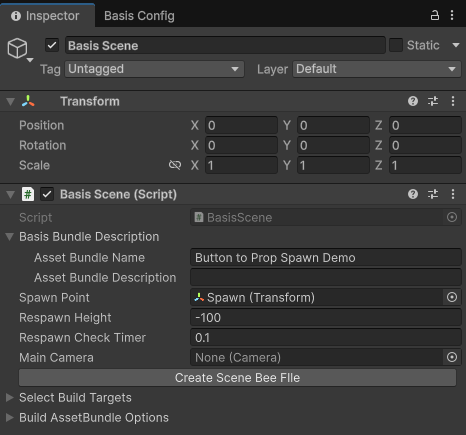
Before you can test out the network synced pickup cube, ensure that your scene has a Basis Scene component attached to an empty Gameobject.
-
Click 'Create Scene Bee File'.
-
Open up the Load Config editor again.
-
Enter your generated scene password and .bee url.
-
Ensure Persistent is selected so that synced changes persist for late-joining players.
-
Click Save XML.
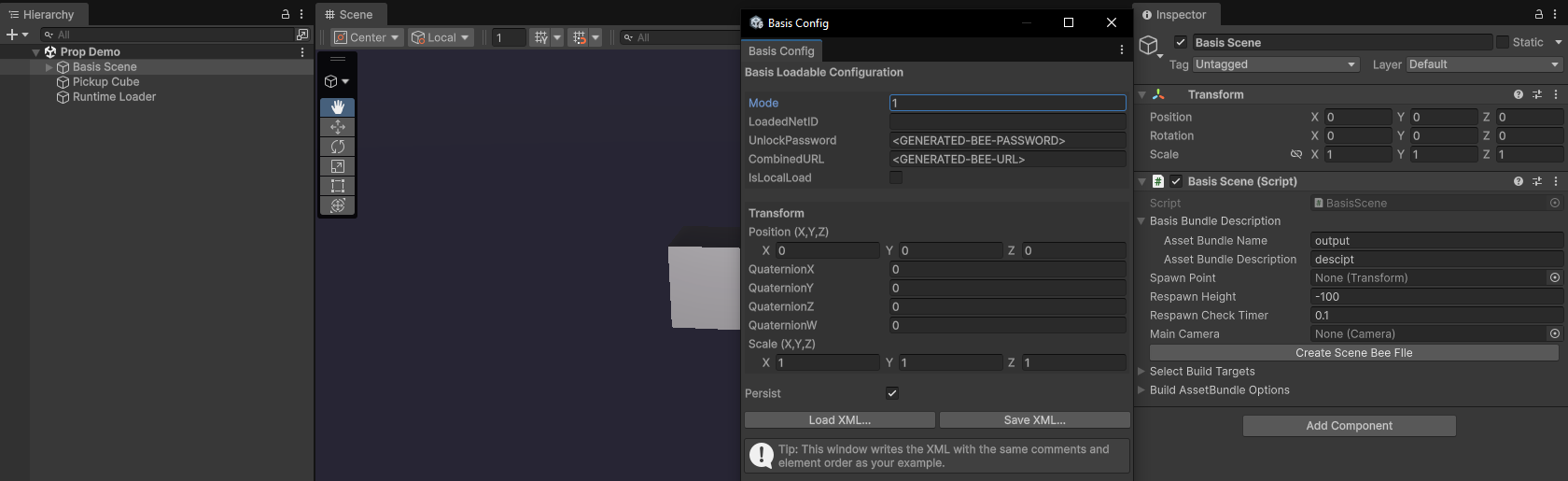
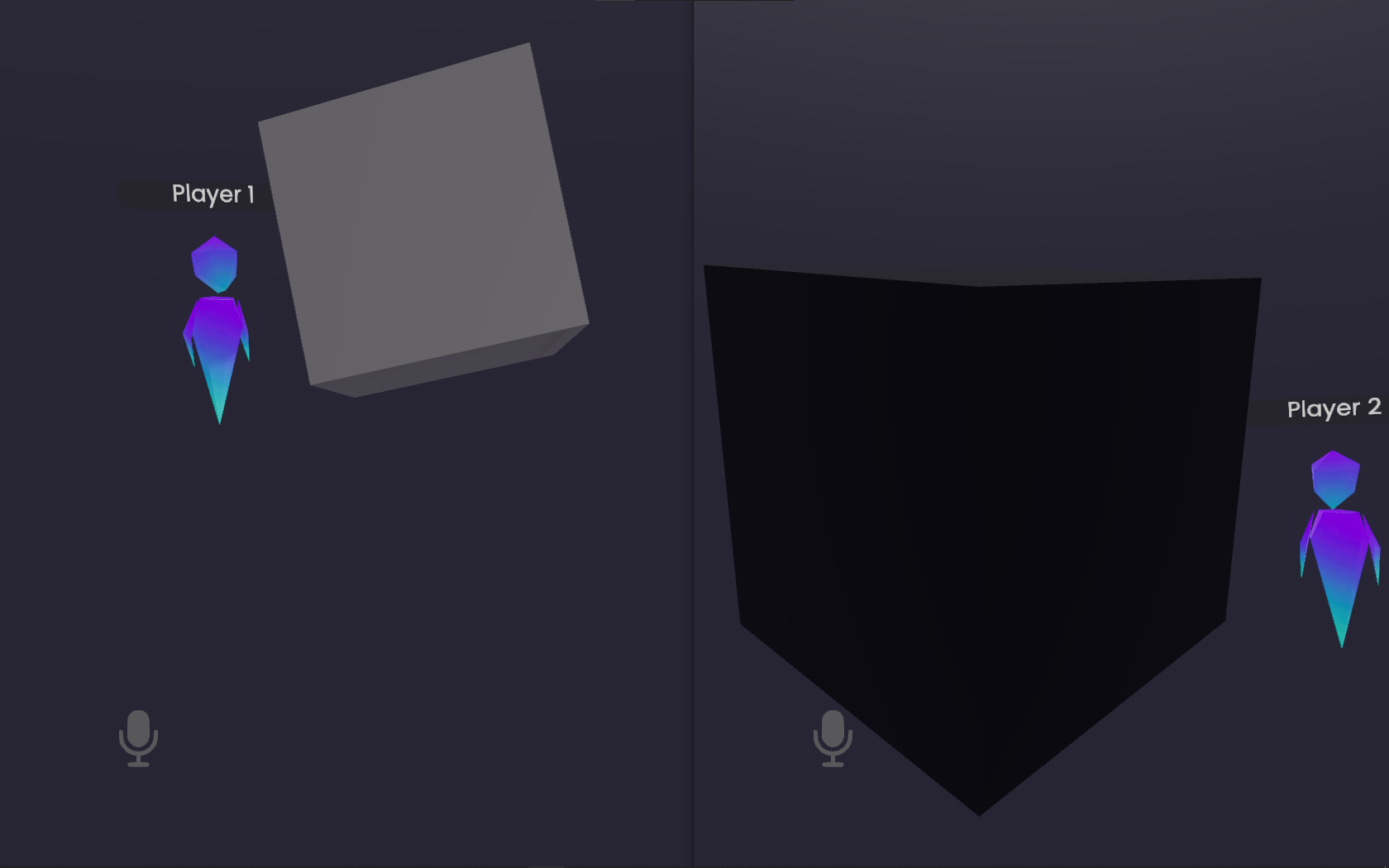
- Open up the 'Initialization' scene and press play. This initialises the created scene and network objects. The next time when you load the scene through the server while running the basis application, all players will be able to interact with the network synced cube.
How to Spawn a Prop Using a Scene button
The Runtime Loader component will generate any props located in Basis\Basis Server\BasisServerConsole\bin\Debug\net9.0\initialresources at runtime. It is also possible to use a button with a scene to generate props. To do so:
- Add a canvas object to your scene. Make sure to attach the relevant components similar to what was shown in the previous sections. Remember to add a Basis Prop component to generate a .bee file for your prop and upload it to a remote server.
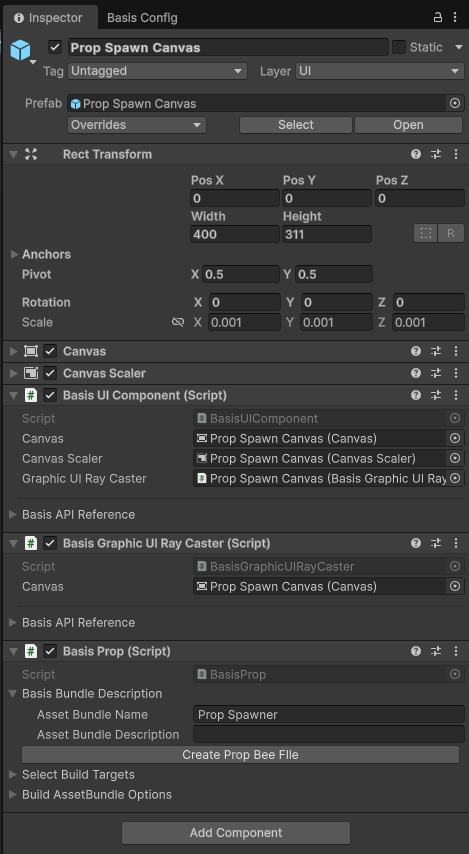
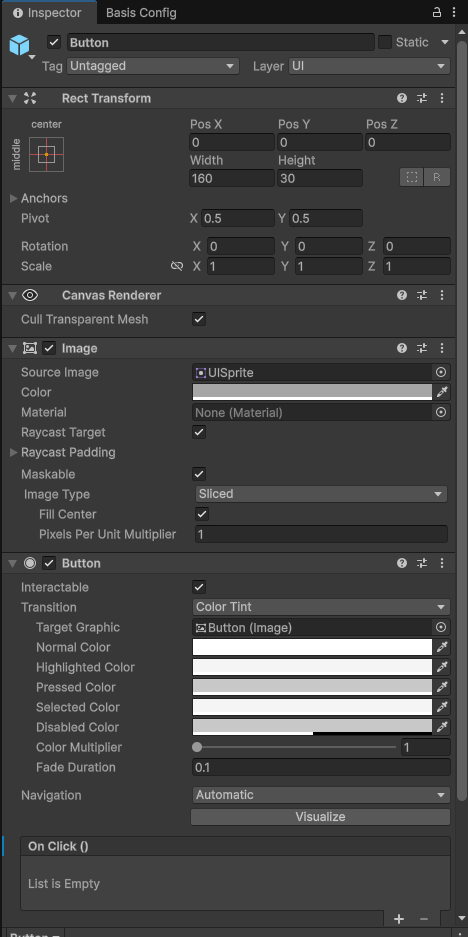
- Create a TMP button.
- Add a Basis Prop component, enter an Asset Bundle Name and press the 'Create Prop Bee File' button. The generated .bee files will be used by the Basis Runtime Loader to load the prop into a scene. For this example, we will use the network synced cube from the previous section again.
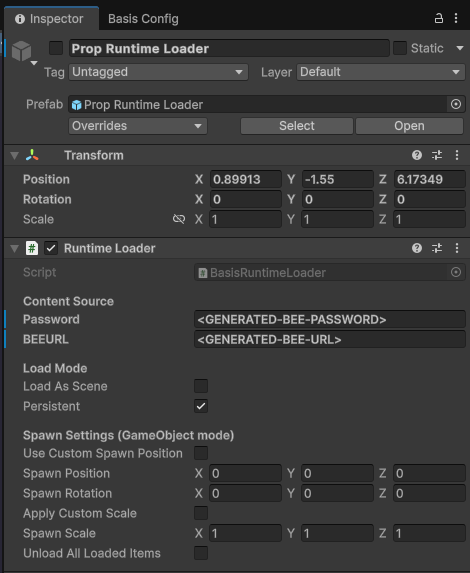
- Create an empty Gameobject and attach a Runtime Loader component to it. This will be used to spawn the prop. To avoid props being generated on scene start up, disable the component in the inspector.
If you want your prop to be network synced, add a networking syncing component to it. For instance, you can use the Basis Object Network Syncing component, as shown previously, to synchronise prop movement.
You can also create your own network syncing code. For inspiration and to help you get started, you can refer to example packages Basis Ported Pooltable and Basis Vehicles which you can find inside the project.
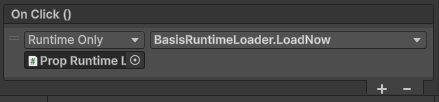
- Select your button and add an onClick() event to it. Assign your Runtime Loader Gameobject, making sure to select BasisRuntimeLoader.LoadNow as the method which your button will call on when clicked.
-
Open up the Load Config editor.
-
Enter your generated prop password and .bee url.
-
Ensure Persistent is selected so that synced changes persist for late-joining players.
-
Click Save XML.
- If you haven't already, create an empty Gamebject and attach a Basis Scene component to it, filling in the relevant fields. Once set, click 'Create Scene Bee File'.
-
Open up the Load Config editor again.
-
Enter your generated scene password and .bee url.
-
Ensure Persistent is selected so that synced changes persist for late-joining players.
-
Click Save XML.
- Open up the 'Initialization' scene and press play. This initialises the created scene and network objects. The next time when you load the scene through the server while running the basis application, you should be able to spawn your prop via a button.
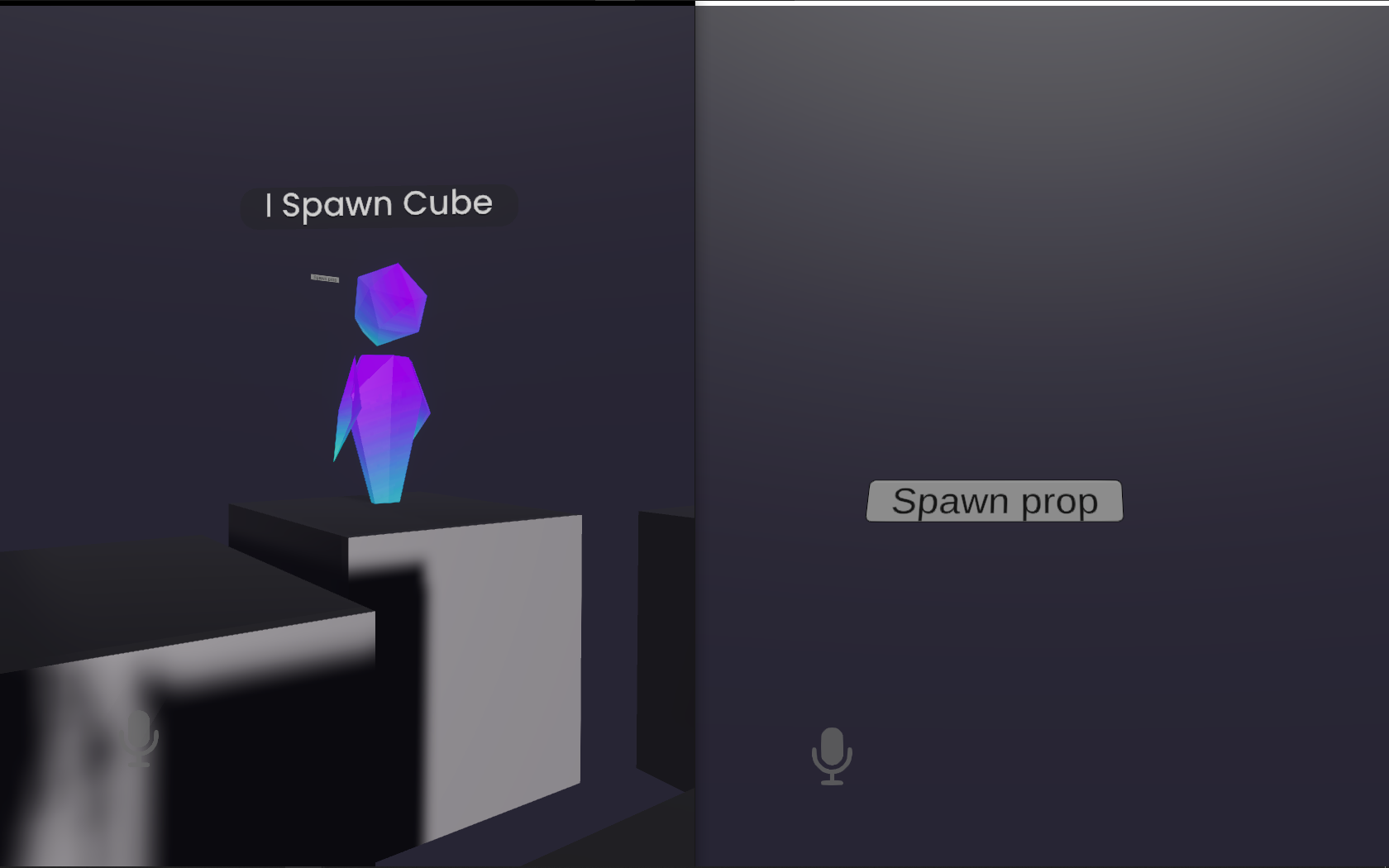
Note: Both local and remote players can spawn cubes!
Double note: You can access Basis VR via Steam as well. To get an access key, join the discord!